Home / Troubleshooting / Volume Space Exhaustion
Volume Space Exhaustion
Symptoms: writes fail with "volume is full", clients see ENOSPC, snapshot autodelete starts deleting snapshots, or performance degrades as the volume/aggregate runs dry.
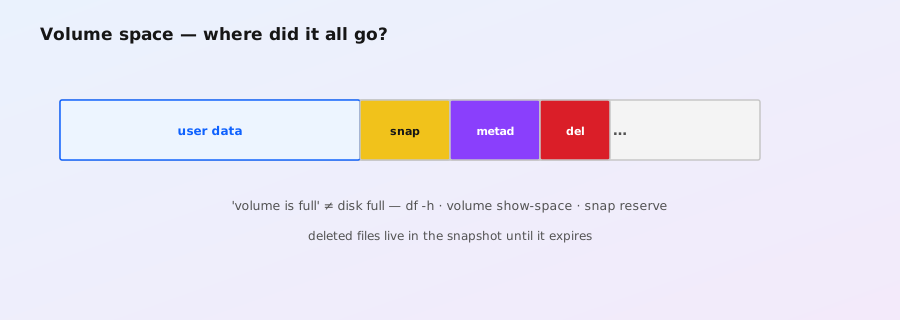
1. Diagnose: where did the space go?
Check the volume and the aggregate. A full aggregate hurts every volume on it; a full volume is usually a snapshot or data problem.
# Volume-level: size, used, and percent used
volume show -vserver vs1 -volume vol1 -fields size,used,percent-used,space-guarantee,space-slo
# Also see logical vs physical usage (efficiency effects)
volume show -vserver vs1 -volume vol1 -fields logical-used,logical-space-used
# Aggregate-level: is the pool itself full?
storage aggregate show -aggregate aggr1 -fields size,used,percent-used,percent-snapshot-reserve
# All volumes on that aggregate — who is consuming?
volume show -aggregate aggr1 -fields volume,vserver,size,used,percent-used
2. Snapshots holding deleted data
The classic: you delete files, but space doesn't come back. If any snapshot still references those blocks, they stay allocated. Check snapshot count, sizes, and the reserve:
# List snapshots and their size
snapshot show -vserver vs1 -volume vol1
# Snapshot reserve and autodelete configuration
snapshot autodelete show -vserver vs1 -volume vol1
# How much space would be freed? (advanced)
set -privilege advanced
volume show -vserver vs1 -volume vol1 -fields snapshot-reserve,percent-snapshot-space
set -privilege admin
Actions, in order of preference:
- Let autodelete work — if snapshot autodelete is enabled with a trigger (e.g.,
volumeorsnap_reserve), ONTAP frees snapshots automatically when the volume fills. Checksnapshot autodelete showfor state (on/off) and trigger. - Delete old snapshots manually —
snapshot delete -vserver vs1 -volume vol1 -snapshot <name>. Watch theSnapshotcolumn ofdf -hto see space return. - Reduce snapshot retention — edit the volume's snapshot policy:
volume modify -vserver vs1 -volume vol1 -snapshot-policy <policy>or adjust the reserve:volume modify -vserver vs1 -volume vol1 -snapshot-reserve 5. - Free the .snapshot directory — clients can also delete their own files from
.snapshotif access is enabled.
3. The aggregate is full (overcommitment)
Thin-provisioned volumes overcommit the aggregate. When the aggregate fills, ONTAP starts failing writes to the biggest offenders (space-guarantee none volumes) and can trigger autodelete. Check:
# Which volumes have no guarantee (thin) on this aggregate?
volume show -aggregate aggr1 -fields volume,space-guarantee,size,used,percent-used
# Aggregate headroom
storage aggregate show -aggregate aggr1 -fields percent-used,available,size
# Add capacity: add disks to the aggregate (if shelves allow)
storage aggregate add-disks -aggregate aggr1 -diskcount 4
Options: add disks, move volumes to another aggregate (volume move start), or reclaim space (below). In a pinch, deleting snapshots on the aggregate's volumes frees both volume and aggregate space.
4. Reclaiming space clients "freed"
- NFS — file deletion frees blocks automatically (unless snapshots hold them). Sparse-file hole punching (NFSv4.2 punch hole) is supported on recent ONTAP; the client must issue it.
- SMB — Windows "compacted" or deleted files free space; the
fsutil-style TRIM/unmap is handled by ONTAP's SMB implementation for thin LUNs/VHDX. - VMware — VMFS UNMAP must be triggered from vSphere (automatic with recent ESXi) so the deleted blocks are unmapped back to the datastore LUN/volume.
- Thin LUNs — guest OS deletion doesn't shrink the LUN unless the OS sends UNMAP and ONTAP propagates it. For VMDKs on NFS, this works via NFS file deletion.
# Space reclamation status for a volume (advanced)
set -privilege advanced
volume show -vserver vs1 -volume vol1 -fields space-reclamation-enabled
set -privilege admin
5. Inode exhaustion (FlexVol)
If you see "out of inodes" or df -i on clients shows 100%, the volume ran out of filesystem entries. Check and fix:
# Inode usage (advanced fields)
volume show -vserver vs1 -volume vol1 -fields files,files-used,percent-inode-used
# Add inodes (only up to the volume's max, requires space)
volume modify -vserver vs1 -volume vol1 -files 2000000
# FlexGroup note: inodes are per constituent — plan for growth
6. Prevention
- Monitor with thresholds:
volume show -fields percent-usedvia cron/scripts, or Active IQ alerts. Act at 80–85%. - Keep autodelete configured sensibly (
snapshot autodelete modify -trigger volume -destroy-list ... -commitment try). - Don't thin-provision blindly — track aggregate utilization (
storage aggregate show -fields percent-used) weekly. - Size volumes with headroom for snapshots and growth (see the sizing calculator).
- Enable space reclamation where clients support it (VMware UNMAP, SMB TRIM, NFSv4.2 punch hole).